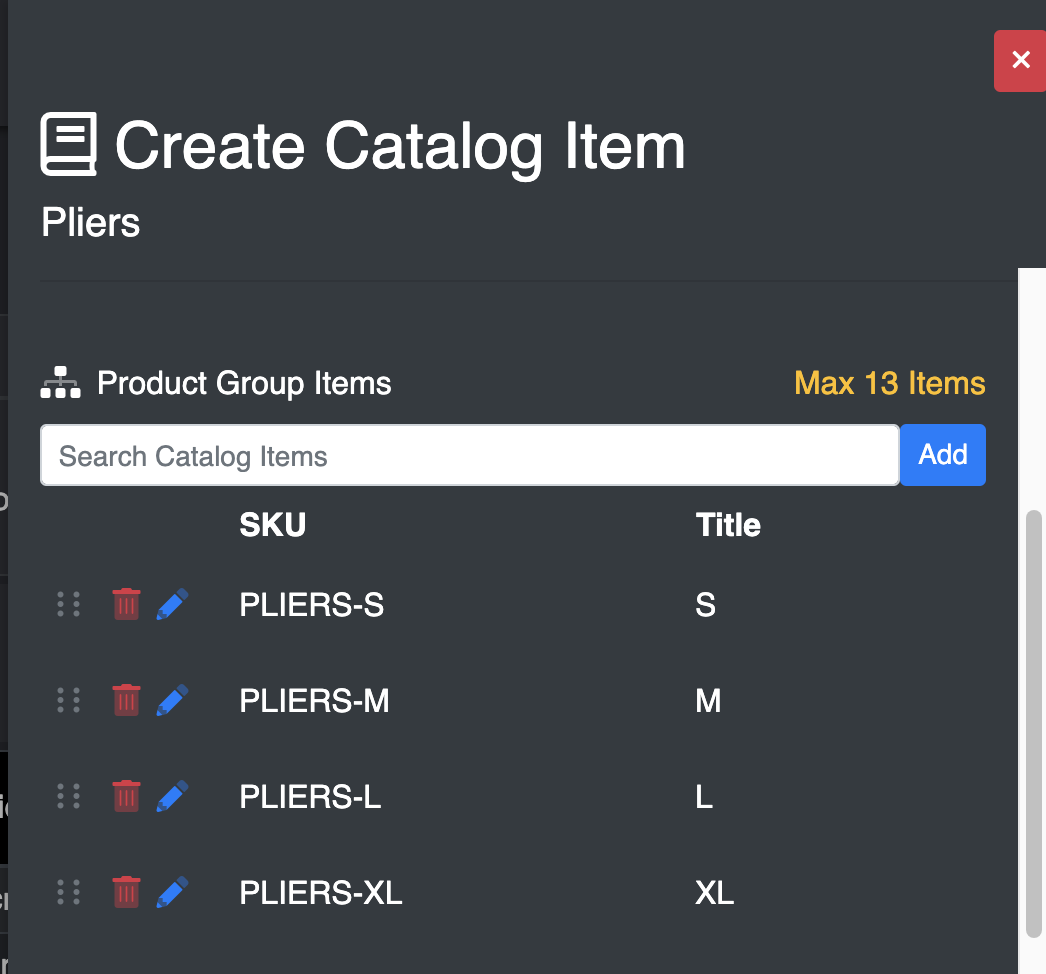
Flat Product Groups allow you to connect up to 13 items to a single parent catalog item . This gives users a simple and fast way to order multiple sizes of the product.Multi Product Groups allow you to have a single searchable item connected to different variants of a single item. For example, if you had Coffee, available in both Whole Bean and Ground. A user can find the one and order from the different variants for the different sizes you offer.Pro Tip: You can save a step by creating the items that will be attached to the product group first, then make the product group.
Creating a Product Group
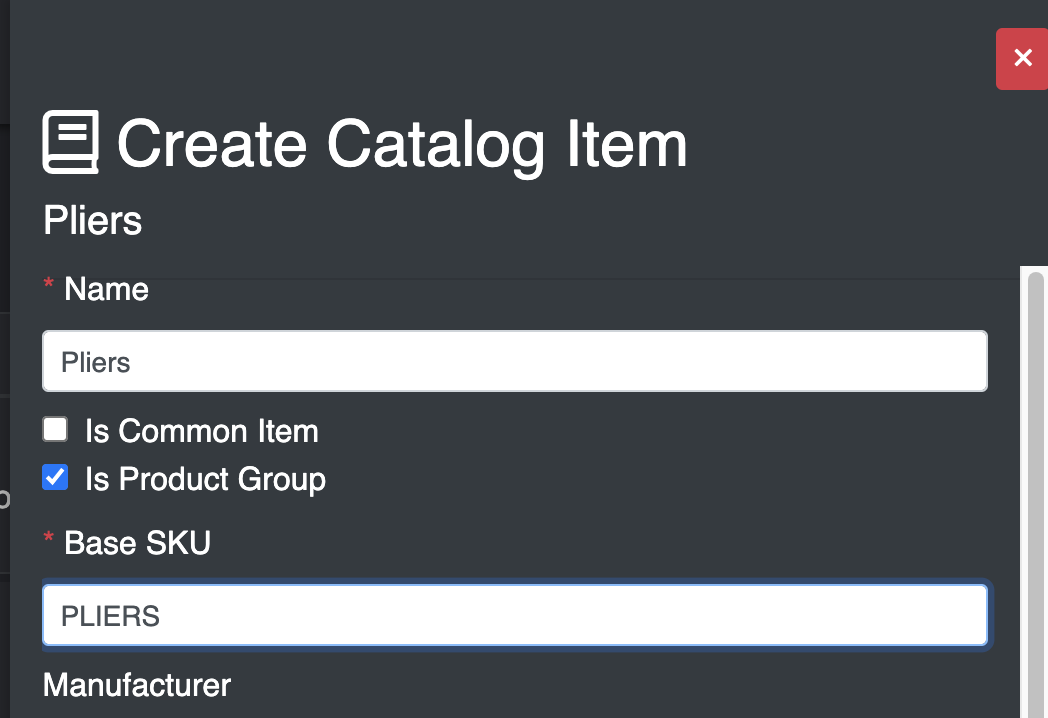
Create a new Catalog Item for the applicable Catalog.Step 1 – Click the ‘Is Product Group’ checkbox.
Step 2 – Scroll down further and Add Items to the ‘Product Group’Step 3 – Select 'Flat' or 'Multi'
Flat Product Group - Add items to the product group
Multi Product Group - Create the variants and add items to the variant group. There are two display styles, All Visible and Select Section. Select Section will show only the variant selected sub items.
Note: To rearrange the items, use the dots on the left to drag the rows up or down in order.Once finished, scroll down and hit either Create or the Save Button.
Using Product Groups
When searching for a product group, you will notice that the returned item will have a product group icon
on the right side of the search result.Selecting a product group will show a widget, which allows users to quickly order all of the attached different sizes without needing to search for the individual SKUsFlat Product Group WidgetMulti Product Group Selected Widget
Clicking 'Add' will add all catalog items to the order, with a Quantity of 1 or more.