New: AI Assistants (MCP)
AI order management for distributors and manufacturers
Connect Claude to Orderwerks® and ask about customers, stock, orders and sales in plain language. Then have it build the quote or draft order for you.
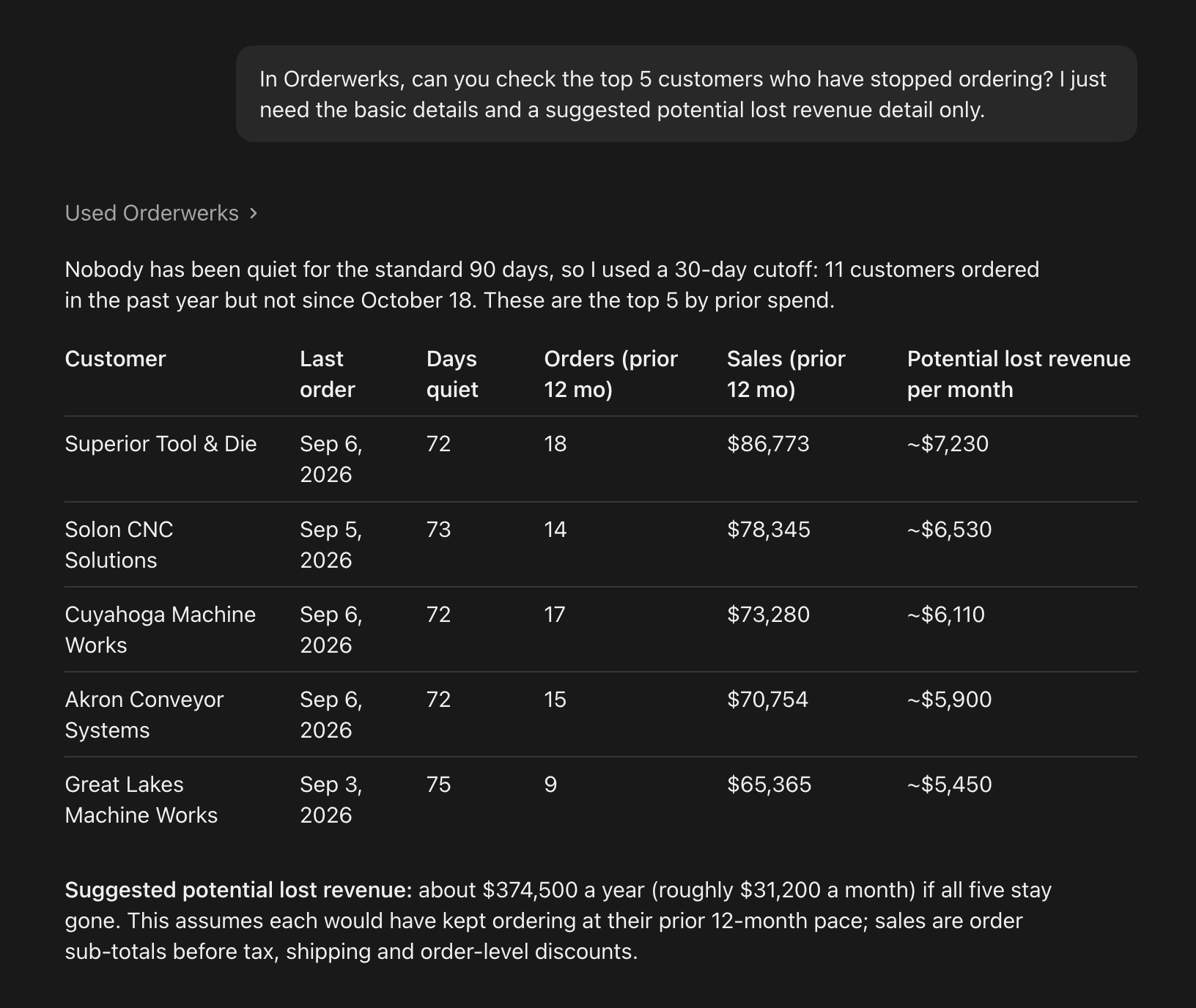
What you can ask your AI assistant
No reports to build and no screens to click through. Ask the way you would ask someone in the office.
For owners and managers
- “Who are my top ten customers this quarter?”
- “Which customers have stopped ordering?”
- “Who owes us money, and how old is it?”
An AI sales assistant for your reps
- “What did Harbor Cafe order last month, and has it shipped?”
- “Make a quote for Corner Deli for 5 cases of apples and 2 of pears, and give me the PDF.”
- “Turn that quote into an order.”
For the office
- “Do we have 20 cases of SKU 1042, and when is more coming in?”
- “Show me open orders that are backordered.”
- “How has SKU 1042 sold month by month this year?”
What the assistant can do
The Orderwerks connector gives your assistant 19 tools in three groups.
Look things up
- Find customers and see contact details, addresses, price group, terms, credit limit and open balance
- Search products by name, SKU, description or UPC, with that customer’s prices and stock
- Check one item’s stock: available, reserved, backordered, the orders waiting on it and the purchase orders bringing more
- Find orders and quotes by customer, PO number, invoice number, state, date, paid or unpaid, open or backordered
- Open one order with its lines, totals, history and shipments with tracking
Sales reports
- Top customers by sales in a period
- Best-selling items, for everyone or for one customer
- Month-by-month quantity and sales for chosen SKUs
- Customers who used to order and have stopped
- Each salesperson’s sales for the week, month, quarter and year to date
- Who owes money, with the unpaid total by age
Create and change
- Create a customer account
- Create an order or a quote for an existing customer
- Change a draft order or quote, or submit it
- Cancel a draft order or quote
- Turn a quote into an order
- Get a PDF of a quote, sales order or invoice
- Email a quote or an order confirmation to the customer
You stay in control
The assistant signs in as you, so it sees and does only what your own Orderwerks user is allowed to.
Orders are saved as drafts. The assistant submits an order only when you ask it to.
Orderwerks sets every price from the customer’s price group. The assistant cannot set or change a price.
Only drafts and quotes can be changed or cancelled through the assistant. A submitted order is changed in Orderwerks.
A quote is emailed only to addresses already on the customer’s record.
Payments cannot be taken or changed through the assistant.
Disconnect any time from Connected Apps in your Orderwerks profile, and the assistant loses access immediately.
Connect in a few steps
- 1
In Claude, open Settings, then Connectors, and add a custom connector.
- 2
Enter the address
https://mcp.orderwerks.com/mcpand name it Orderwerks. - 3
Choose Connect and sign in to Orderwerks.
- 4
Review what the assistant is asking to do and approve it.
You need an Orderwerks user on a supplier account and an AI assistant that supports custom MCP connectors, such as Claude. Full instructions are in the setup guide.
Works with the rest of Orderwerks
The assistant reads the same customers, catalog, price groups and orders your team already uses in the Orderwerks web app, the Sales App and the customer ordering portal. A quote or draft order it creates shows up in Orderwerks like any other, ready for your team to review.
Frequently asked questions
MCP stands for Model Context Protocol. It is an open standard that AI assistants use to work with other software. Orderwerks runs an MCP server, so an assistant that supports MCP can look things up and create quotes and draft orders in your account.
Any assistant that supports custom MCP connectors. Our setup guide covers Claude.
No. Orders are saved as drafts, and the assistant submits an order only when you ask it to.
No. Orderwerks sets every price from the customer’s price group, and payments cannot be taken or changed through the assistant.
It signs in as you, so it sees and does only what your own Orderwerks user is allowed to.
Not yet. The connection is for users on a supplier account.
Open your profile in Orderwerks, find Connected Apps and choose Disconnect. The assistant loses access immediately.
See Orderwerks with an AI assistant
Book a product tour and we will show you live answers from a demo account.
